Sandbox
With Shipmondo Sandbox, you can test your API integration, shipment bookings, prints, and other features in a closed test environment at no cost to you. When using the Shipmondo API, our sandbox allows you to confirm that your data is delivered correctly and that the booking has been successful.
How to Get Started with Shipmondo Sandbox
To test your API integration within our sandbox environment, please submit a request to our support team containing the following details:
- Name
- Email address
- Address and country (used as the accounts default sender address)
- Language (Danish or english)
- Reason for wanting to use Shipmondo Sandbox
You will then receive an email from us with login details, and you will be ready to test the Shipmondo API or Shipmondo Sandbox.
Go to https://sandbox.shipmondo.com/account/login/ and log in with your Shipmondo account.
A banner at the top of your Shipmondo dashboard will indicate that you are currently in the sandbox environment.

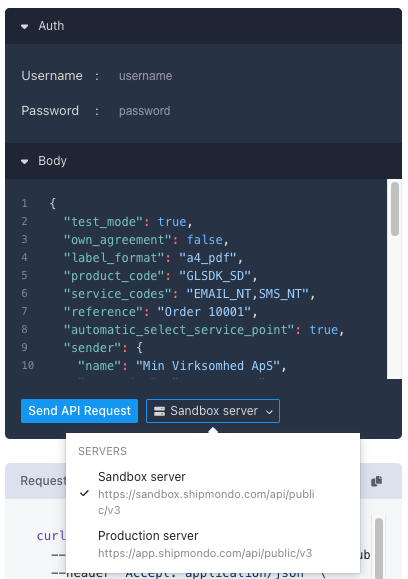
You can test your requests through our API Reference. Make sure to select "Sandbox server":
Test: Booking Shipments
There is no limit to the number of shipments you can book. However, there is a limitation on which carriers you can choose when creating the shipment. Currently, you can choose from the largest and most commonly used carriers.
Our sandbox supports the following carriers:
- Bring Denmark, Norway, Sweden
- dao
- DHL Freight Sweden, Denmark
- DHL Parcel Germany
- GLS Denmark
- PostNord Denmark, Norway, Sweden, Finland
- UPS
- Citymail
You can find your booked shipments under the menu Shipments > Booked in your sandbox Shipmondo account.
Using the Print Client in the Sandbox
The Print Client is supported in the Sandbox. You just need to make a few small changes to the config file to make it connect to the Sandbox instead of Production.
First step is to locate the config file. The file is named settings.json. On Windows it is located in AppData\Local\Shipmondo and on Mac it is located in /Users/<username>/Library/Application Support/Shipmondo/settings.json.
You need to update the following keys:
apiUrl = https://sandbox.shipmondo.com/api/public/v3/wsUrl = wss://ps-sandbox.shipmondo.com/websocketpsUrl = https://ps-sandbox.shipmondo.com/api/psDomain = .ps-sandbox.shipmondo.com(the dot in the beginning of the line is important)
When testing you can consider setting testPrint to true. This causes the Print Client to handle jobs normally, but it will skip the actual printing phase.
Below is an example for settings.json that connects to the Sandbox and skips the printing step.
{
  "apiUser": "paste-in-api-user",
  "apiKey": "paste-in-api-key",
  "inputPath": null,
  "successPath": null,
  "outputPath": null,
  "failPath": null,
  "locale": "da-DK",
  "responseFormat": null,
  "openOnStartUp": false,
  "useFileIntegration": false,
  "minimizeOnStartUp": false,
  "version": null,
  "apiUrl": "https://sandbox.shipmondo.com/api/public/v3/",
  "wsUrl": "wss://ps-sandbox.shipmondo.com/websocket",
  "psUrl": "https://ps-sandbox.shipmondo.com/api/",
  "psDomain": ".ps-sandbox.shipmondo.com",
  "debugMode": true,
  "persistentLog": false,
  "proxyUrl": null,
  "proxyUsername": null,
  "proxyPassword": null,
  "testPrint": true
}
Please note
-
The speed in the sandbox environment cannot be compared to the production API. Therefore, it cannot be used to test performance.
-
You cannot use payment cards in the sandbox, as all tests are free. In connection with creating a login for the Sandbox, you will receive fictitious money in your balance. When you book your shipments, you will be presented with a price, but you simply choose to use the balance as payment.
-
Although shop integrations can be created, the actual workers behind does not run in the sandbox environment. This means orders are not imported.
Transitioning from Sandbox to Live
When you have tested that your data is delivered correctly in our sandbox, you are ready to switch to live. To do this, you need to change the URL in your API from https://sandbox.shipmondo.com to https://app.shipmondo.com and update the keys. You can find your API keys under API access.